
Part 1では問題の本質を理解し、Part 2ではJavaScriptによる実装の基本を学びました。いよいよPart 3では、実際に動作するサジェスト機能を完成させます。
この記事では、以下のことを実現します。
- HTMLとCSSで美しい候補表示UIを構築
- キーボード操作(↑↓キー、Enter、Escape)への対応
- マウスクリックでの候補選択
- フォーカスが外れたときの候補非表示
- XSS対策(セキュリティ考慮)
- コピペで動く完全なサンプルコード
この記事を読み終える頃には、あなたのWebサイトにすぐに導入できる、本格的なサジェスト機能が手に入ります。
このシリーズの全体像
📚 シリーズ記事一覧
Part 1:なぜ難しい?仕組みを徹底理解
Part 2:IME対応とJavaScript実装の基本
▶ Part 3:実践コード完全版と動作デモ(この記事)
Part 4:応用テクニックと本番運用


第1章:HTMLの構造を設計する
サジェスト機能のUIは、大きく3つの要素で構成されます。
- コンテナ:全体を囲む要素(位置の基準になる)
- 入力欄:ユーザーがテキストを入力する
<input>要素 - 候補リスト:検索結果を表示する
<ul>要素
1-1. 基本的なHTML構造
|
1 2 3 4 5 6 7 8 9 10 11 12 13 |
<div class="suggest-container"> <input type="text" id="searchInput" class="suggest-input" placeholder="検索キーワードを入力..." autocomplete="off" > <ul id="suggestionList" class="suggest-list"> <!-- ここに候補が動的に追加される --> </ul> </div> |
各要素のポイントを解説します。
class="suggest-container"
コンテナにはposition: relativeを設定します。これにより、候補リストを入力欄の下に正確に配置できます。
autocomplete="off"
ブラウザ標準のオートコンプリート機能を無効にします。自前のサジェスト機能と競合しないようにするためです。
class="suggest-list"
候補リストは最初は空で、JavaScriptで動的に<li>要素を追加します。
1-2. アクセシビリティを考慮した構造
スクリーンリーダーなどの支援技術に対応するため、WAI-ARIAの属性を追加します。
|
1 2 3 4 5 6 7 8 9 10 11 12 13 14 15 16 17 18 19 20 21 |
<div class="suggest-container"> <input type="text" id="searchInput" class="suggest-input" placeholder="検索キーワードを入力..." autocomplete="off" role="combobox" aria-expanded="false" aria-autocomplete="list" aria-controls="suggestionList" > <ul id="suggestionList" class="suggest-list" role="listbox" aria-label="検索候補" > </ul> </div> |
role="combobox"は、この入力欄がドロップダウンリストと連携していることを示します。aria-expandedは、候補リストが開いているかどうかを示します(JavaScriptで動的に切り替えます)。
第2章:CSSでスタイリングする
候補リストを美しく、使いやすくスタイリングします。
2-1. 基本スタイル
|
1 2 3 4 5 6 7 8 9 10 11 12 13 14 15 16 17 18 19 20 21 22 23 24 25 26 27 28 29 30 31 32 33 34 35 36 37 38 39 40 41 42 43 44 45 46 47 |
/* コンテナ:位置の基準 */ .suggest-container { position: relative; width: 100%; max-width: 500px; } /* 入力欄 */ .suggest-input { width: 100%; padding: 12px 16px; font-size: 16px; border: 2px solid #e0e0e0; border-radius: 8px; outline: none; transition: border-color 0.2s; box-sizing: border-box; } .suggest-input:focus { border-color: #0066cc; } /* 候補リスト */ .suggest-list { position: absolute; top: 100%; left: 0; right: 0; margin: 0; padding: 0; list-style: none; background: #fff; border: 1px solid #e0e0e0; border-radius: 0 0 8px 8px; box-shadow: 0 4px 12px rgba(0, 0, 0, 0.1); max-height: 300px; overflow-y: auto; z-index: 1000; display: none; /* 初期状態は非表示 */ } /* 候補が存在するときに表示 */ .suggest-list.active { display: block; } |
position: absoluteとtop: 100%で、候補リストを入力欄のすぐ下に配置しています。z-index: 1000で、他の要素より前面に表示されるようにしています。
2-2. 候補アイテムのスタイル
|
1 2 3 4 5 6 7 8 9 10 11 12 13 14 15 16 17 18 19 20 21 22 23 24 25 26 27 28 29 |
/* 候補アイテム */ .suggest-item { padding: 12px 16px; cursor: pointer; transition: background-color 0.15s; border-bottom: 1px solid #f0f0f0; } .suggest-item:last-child { border-bottom: none; } /* ホバー時のスタイル */ .suggest-item:hover { background-color: #f5f5f5; } /* キーボード選択時のスタイル */ .suggest-item.selected { background-color: #e6f0ff; } /* 読みの表示 */ .suggest-reading { font-size: 12px; color: #888; margin-left: 8px; } |
.suggest-item.selectedは、キーボードの↑↓キーで選択されている候補を示すスタイルです。ホバーとは別の色にすることで、マウス操作とキーボード操作の区別がつきやすくなります。
2-3. 候補がないときの表示
|
1 2 3 4 5 6 7 8 |
/* 候補がないときのメッセージ */ .suggest-empty { padding: 12px 16px; color: #888; font-style: italic; text-align: center; } |
検索結果がないときは、「候補がありません」といったメッセージを表示します。何も表示しないより、ユーザーに状況を伝えるほうが親切です。
第3章:JavaScriptで機能を実装する
いよいよ、JavaScriptで本格的なサジェスト機能を実装します。コードを機能ごとに分けて解説していきます。
3-1. 辞書データを用意する
まず、検索対象となる辞書データを用意します。今回は、天気、色、季節、IT用語など、さまざまなカテゴリの単語を含めています。
|
1 2 3 4 5 6 7 8 9 10 11 12 13 14 15 16 17 18 19 20 21 22 23 24 25 26 27 28 29 30 31 32 33 34 35 36 37 38 39 40 41 42 43 44 45 46 47 48 49 50 51 52 53 54 55 56 57 58 59 60 61 62 63 64 |
const dictionary = [ // 天気関連 { text: '雨', reading: 'あめ' }, { text: '雨天', reading: 'うてん' }, { text: '雨雲', reading: 'あまぐも' }, { text: '晴れ', reading: 'はれ' }, { text: '曇り', reading: 'くもり' }, { text: '雪', reading: 'ゆき' }, { text: '台風', reading: 'たいふう' }, { text: '天気', reading: 'てんき' }, { text: '天気予報', reading: 'てんきよほう' }, // 色 { text: '赤', reading: 'あか' }, { text: '青', reading: 'あお' }, { text: '黄色', reading: 'きいろ' }, { text: '緑', reading: 'みどり' }, { text: '白', reading: 'しろ' }, { text: '黒', reading: 'くろ' }, { text: 'オレンジ', reading: 'おれんじ' }, // 季節 { text: '春', reading: 'はる' }, { text: '夏', reading: 'なつ' }, { text: '秋', reading: 'あき' }, { text: '冬', reading: 'ふゆ' }, // 時間 { text: '朝', reading: 'あさ' }, { text: '昼', reading: 'ひる' }, { text: '夕方', reading: 'ゆうがた' }, { text: '夜', reading: 'よる' }, { text: '今日', reading: 'きょう' }, { text: '明日', reading: 'あした' }, { text: '昨日', reading: 'きのう' }, // IT用語 { text: 'JavaScript', reading: 'じゃばすくりぷと' }, { text: 'HTML', reading: 'えいちてぃーえむえる' }, { text: 'CSS', reading: 'しーえすえす' }, { text: 'プログラミング', reading: 'ぷろぐらみんぐ' }, { text: 'サーバー', reading: 'さーばー' }, { text: 'データベース', reading: 'でーたべーす' }, { text: 'アプリケーション', reading: 'あぷりけーしょん' }, // 地名 { text: '東京', reading: 'とうきょう' }, { text: '大阪', reading: 'おおさか' }, { text: '名古屋', reading: 'なごや' }, { text: '福岡', reading: 'ふくおか' }, { text: '北海道', reading: 'ほっかいどう' }, { text: '沖縄', reading: 'おきなわ' }, { text: 'アメリカ', reading: 'あめりか' }, { text: '日本', reading: 'にほん' }, // その他 { text: '検索', reading: 'けんさく' }, { text: '設定', reading: 'せってい' }, { text: 'ヘルプ', reading: 'へるぷ' }, { text: 'お問い合わせ', reading: 'おといあわせ' }, { text: 'ログイン', reading: 'ろぐいん' }, { text: 'ログアウト', reading: 'ろぐあうと' }, ]; |
辞書は実際の用途に合わせてカスタマイズしてください。ECサイトなら商品名、ブログなら記事タイトルやタグなど、サイトの内容に応じた候補を用意すると、より便利なサジェストになります。
3-2. ユーティリティ関数を定義する
共通で使う関数を定義します。
|
1 2 3 4 5 6 7 8 9 10 11 12 13 14 15 16 17 18 19 20 21 22 23 24 |
// ======================================== // debounce関数 // ======================================== function debounce(func, delay) { let timeoutId = null; return function(...args) { if (timeoutId !== null) { clearTimeout(timeoutId); } timeoutId = setTimeout(() => { func.apply(this, args); }, delay); }; } // ======================================== // HTMLエスケープ(XSS対策) // ======================================== function escapeHtml(text) { const div = document.createElement('div'); div.textContent = text; return div.innerHTML; } |
escapeHtml関数は、非常に重要です。ユーザーの入力や辞書データをHTMLに挿入する際、<script>タグなどの危険な文字列をエスケープします。これにより、XSS(クロスサイトスクリプティング)攻撃を防ぐことができます。
⚠️ セキュリティ上の注意
ユーザー入力や外部データをHTMLに挿入する際は、必ずエスケープ処理を行ってください。エスケープを怠ると、悪意のあるスクリプトが実行される可能性があります。innerHTMLを使う場合は特に注意が必要です。
3-3. プレフィックス検索関数
|
1 2 3 4 5 6 7 8 9 10 11 12 13 14 15 16 17 18 19 20 21 22 23 24 25 26 27 28 29 30 31 |
// ======================================== // プレフィックス検索 // ======================================== function searchByReading(query) { const normalizedQuery = query.toLowerCase().trim(); if (!normalizedQuery) { return []; } let results = dictionary.filter(item => { return item.reading.startsWith(normalizedQuery) || item.text.toLowerCase().startsWith(normalizedQuery); }); // ソート:完全一致優先、次に読みの長さ順 results.sort((a, b) => { const aExact = a.reading === normalizedQuery || a.text.toLowerCase() === normalizedQuery; const bExact = b.reading === normalizedQuery || b.text.toLowerCase() === normalizedQuery; if (aExact && !bExact) return -1; if (!aExact && bExact) return 1; return a.reading.length - b.reading.length; }); return results.slice(0, 10); } |
3-4. UI操作関数を定義する
候補リストの表示・非表示、選択状態の管理などを行う関数を定義します。
|
1 2 3 4 5 6 7 8 9 10 11 12 13 14 15 16 17 18 19 20 21 22 23 24 25 26 27 28 29 30 31 32 33 34 35 36 37 38 39 40 41 42 43 44 45 46 47 48 49 50 51 52 53 54 55 56 57 58 59 60 61 62 63 64 65 66 67 68 69 70 71 72 73 74 75 76 77 78 79 80 81 82 83 84 85 86 87 88 89 90 91 92 93 94 95 96 97 98 99 100 101 |
// ======================================== // グローバル変数 // ======================================== const input = document.getElementById('searchInput'); const suggestionList = document.getElementById('suggestionList'); let isComposing = false; let selectedIndex = -1; // 選択中のインデックス(-1 = 未選択) let currentResults = []; // 現在の検索結果 // ======================================== // 候補リストを表示 // ======================================== function showSuggestions(results) { currentResults = results; selectedIndex = -1; // リストをクリア suggestionList.innerHTML = ''; if (results.length === 0) { // 候補がない場合 const emptyItem = document.createElement('li'); emptyItem.className = 'suggest-empty'; emptyItem.textContent = '候補がありません'; suggestionList.appendChild(emptyItem); } else { // 候補を追加 results.forEach((item, index) => { const li = document.createElement('li'); li.className = 'suggest-item'; li.dataset.index = index; // テキストと読みを表示(エスケープ処理) li.innerHTML = ` <span class="suggest-text">${escapeHtml(item.text)}</span> <span class="suggest-reading">${escapeHtml(item.reading)}</span> `; // クリックで選択 li.addEventListener('click', () => { selectItem(index); }); // ホバーで選択状態を更新 li.addEventListener('mouseenter', () => { updateSelection(index); }); suggestionList.appendChild(li); }); } // リストを表示 suggestionList.classList.add('active'); input.setAttribute('aria-expanded', 'true'); } // ======================================== // 候補リストを非表示 // ======================================== function hideSuggestions() { suggestionList.classList.remove('active'); input.setAttribute('aria-expanded', 'false'); selectedIndex = -1; currentResults = []; } // ======================================== // 選択状態を更新 // ======================================== function updateSelection(index) { // 前の選択を解除 const previousSelected = suggestionList.querySelector('.selected'); if (previousSelected) { previousSelected.classList.remove('selected'); } // 新しい選択を適用 selectedIndex = index; if (index >= 0 && index < currentResults.length) { const items = suggestionList.querySelectorAll('.suggest-item'); if (items[index]) { items[index].classList.add('selected'); // 画面外なら自動スクロール items[index].scrollIntoView({ block: 'nearest' }); } } } // ======================================== // 候補を選択(確定) // ======================================== function selectItem(index) { if (index >= 0 && index < currentResults.length) { const selectedItem = currentResults[index]; input.value = selectedItem.text; hideSuggestions(); input.focus(); } } |
これらの関数が何をしているか、ポイントを解説します。
showSuggestions:検索結果を受け取り、候補リストのHTMLを生成して表示します。各候補アイテムにはクリックイベントとホバーイベントを設定しています。
hideSuggestions:候補リストを非表示にします。aria-expanded属性も更新し、アクセシビリティに配慮しています。
updateSelection:キーボードやマウスで選択された候補を視覚的に強調表示します。scrollIntoViewで、選択項目が画面外の場合は自動スクロールします。
selectItem:候補を選択して入力欄に反映します。選択後は候補リストを閉じます。
3-5. キーボード操作を実装する
↑↓キーでの候補選択、Enterでの確定、Escapeでのキャンセルを実装します。
|
1 2 3 4 5 6 7 8 9 10 11 12 13 14 15 16 17 18 19 20 21 22 23 24 25 26 27 28 29 30 31 32 33 34 35 36 37 38 39 40 41 42 43 44 45 46 47 48 |
// ======================================== // キーボード操作 // ======================================== input.addEventListener('keydown', (e) => { // IME合成中は処理しない if (e.isComposing || isComposing) { return; } const isListVisible = suggestionList.classList.contains('active'); switch (e.key) { case 'ArrowDown': if (isListVisible && currentResults.length > 0) { e.preventDefault(); const nextIndex = selectedIndex < currentResults.length - 1 ? selectedIndex + 1 : 0; updateSelection(nextIndex); } break; case 'ArrowUp': if (isListVisible && currentResults.length > 0) { e.preventDefault(); const prevIndex = selectedIndex > 0 ? selectedIndex - 1 : currentResults.length - 1; updateSelection(prevIndex); } break; case 'Enter': if (isListVisible && selectedIndex >= 0) { e.preventDefault(); selectItem(selectedIndex); } break; case 'Escape': if (isListVisible) { e.preventDefault(); hideSuggestions(); } break; } }); |
e.preventDefault()は、ブラウザのデフォルト動作をキャンセルします。例えば、↑↓キーのデフォルト動作(カーソル移動)を防ぎ、候補選択の動作だけを実行します。
💡 初心者向けポイント
キーボード操作では、↓キーを押し続けると最後の候補から最初の候補に戻る「循環選択」を実装しています。これにより、候補数が多くても素早く目的の候補にたどり着けます。
3-6. IMEイベントと入力イベントを設定する
|
1 2 3 4 5 6 7 8 9 10 11 12 13 14 15 16 17 18 19 20 21 22 23 24 25 26 27 28 29 30 31 32 33 34 35 36 37 38 39 40 41 42 43 44 45 46 47 |
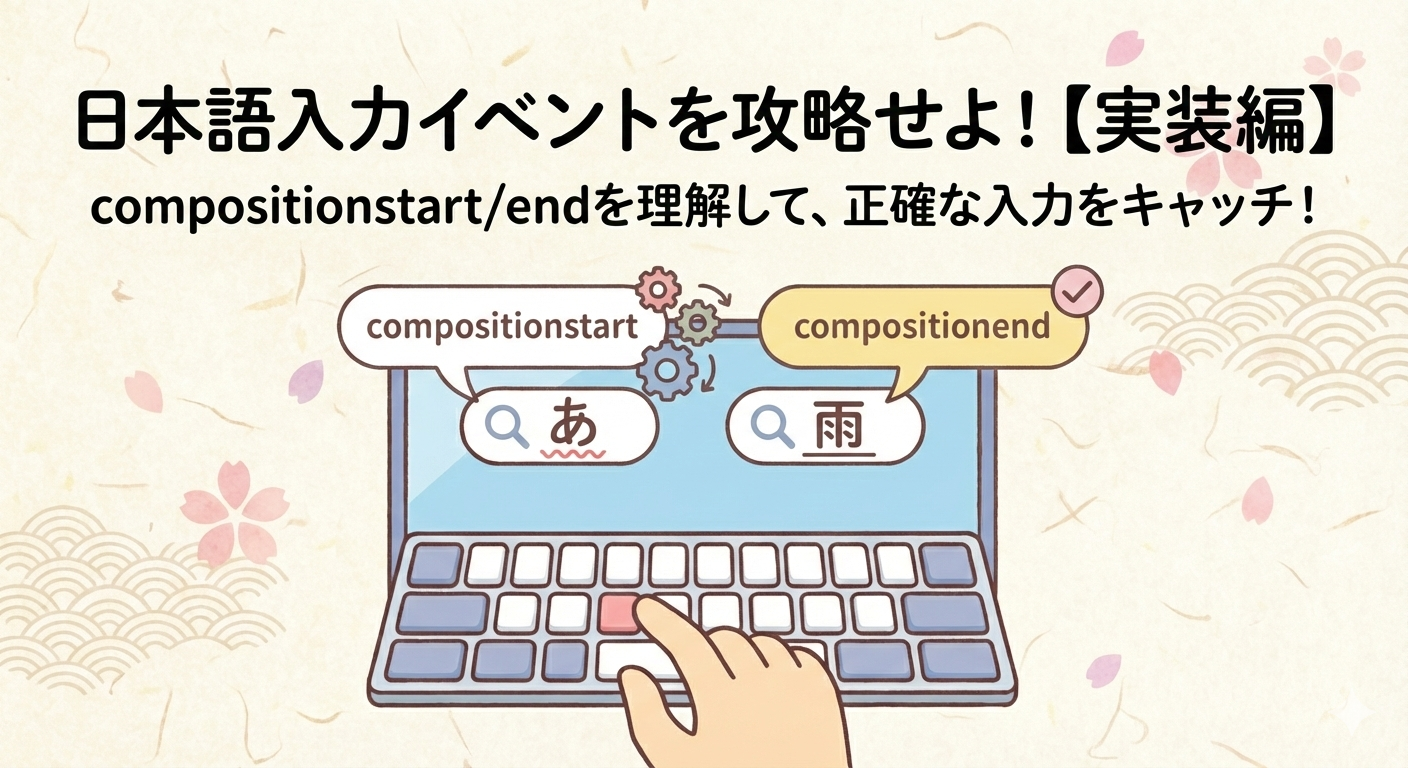
// ======================================== // IME合成イベント // ======================================== input.addEventListener('compositionstart', () => { isComposing = true; }); input.addEventListener('compositionend', () => { isComposing = false; // 合成終了時に検索を実行 updateSuggestions(input.value); }); // ======================================== // 候補を更新 // ======================================== function updateSuggestions(query) { const trimmedQuery = query.trim(); if (!trimmedQuery) { hideSuggestions(); return; } const results = searchByReading(trimmedQuery); if (results.length > 0) { showSuggestions(results); } else { // 候補がないときも「候補がありません」を表示 showSuggestions([]); } } // debounce付きの更新関数 const debouncedUpdate = debounce(updateSuggestions, 150); // ======================================== // 入力イベント // ======================================== input.addEventListener('input', (e) => { if (e.isComposing || isComposing) { return; } debouncedUpdate(e.target.value); }); |
3-7. フォーカスイベントを設定する
入力欄からフォーカスが外れたときに候補リストを閉じる処理を実装します。ただし、候補をクリックしたときにフォーカスが外れてしまうと、クリックが効かなくなるという問題があります。これを解決するために、少し遅延を入れます。
|
1 2 3 4 5 6 7 8 9 10 11 12 13 14 15 16 17 18 |
// ======================================== // フォーカスイベント // ======================================== input.addEventListener('focus', () => { // 入力欄にフォーカスが当たったとき、 // 既に入力があれば候補を表示 if (input.value.trim()) { debouncedUpdate(input.value); } }); input.addEventListener('blur', () => { // 候補クリックを可能にするため、少し遅延させて閉じる setTimeout(() => { hideSuggestions(); }, 200); }); |
200ミリ秒の遅延を入れることで、候補をクリックしてからフォーカスが外れるまでの間に、クリックイベントが処理されます。この遅延がないと、候補をクリックした瞬間にリストが消えてしまい、選択ができません。
第4章:完全なサンプルコード
ここまでの内容をすべて統合した、コピペで動く完全なサンプルコードを掲載します。このコードをHTMLファイルとして保存し、ブラウザで開けば、すぐに動作を確認できます。
4-1. 完全版コード(1ファイル)
|
1 2 3 4 5 6 7 8 9 10 11 12 13 14 15 16 17 18 19 20 21 22 23 24 25 26 27 28 29 30 31 32 33 34 35 36 37 38 39 40 41 42 43 44 45 46 47 48 49 50 51 52 53 54 55 56 57 58 59 60 61 62 63 64 65 66 67 68 69 70 71 72 73 74 75 76 77 78 79 80 81 82 83 84 85 86 87 88 89 90 91 92 93 94 95 96 97 98 99 100 101 102 103 104 105 106 107 108 109 110 111 112 113 114 115 116 117 118 119 120 121 122 123 124 125 126 127 128 129 130 131 132 133 134 135 136 137 138 139 140 141 142 143 144 145 146 147 148 149 150 151 152 153 154 155 156 157 158 159 160 161 162 163 164 165 166 167 168 169 170 171 172 173 174 175 176 177 178 179 180 181 182 183 184 185 186 187 188 189 190 191 192 193 194 195 196 197 198 199 200 201 202 203 204 205 206 207 208 209 210 211 212 213 214 215 216 217 218 219 220 221 222 223 224 225 226 227 228 229 230 231 232 233 234 235 236 237 238 239 240 241 242 243 244 245 246 247 248 249 250 251 252 253 254 255 256 257 258 259 260 261 262 263 264 265 266 267 268 269 270 271 272 273 274 275 276 277 278 279 280 281 282 283 284 285 286 287 288 289 290 291 292 293 294 295 296 297 298 299 300 301 302 303 304 305 306 307 308 309 310 311 312 313 314 315 316 317 318 319 320 321 322 323 324 325 326 327 328 329 330 331 332 333 334 335 336 337 338 339 340 341 342 343 344 345 346 347 348 349 350 351 352 353 354 355 356 357 358 359 360 361 362 363 364 365 366 367 368 369 370 371 372 373 374 375 376 377 378 379 380 381 382 383 384 385 386 387 388 389 390 391 392 393 394 395 396 397 398 399 400 401 402 403 404 405 406 407 408 409 410 411 412 413 414 415 416 417 418 419 420 421 422 423 424 425 426 427 428 429 430 431 432 433 434 435 436 437 438 439 440 441 442 443 444 445 446 447 448 449 450 451 452 453 454 455 456 457 458 459 460 461 462 463 464 465 466 467 468 469 470 471 472 473 474 475 476 477 478 479 480 481 482 483 484 485 |
<!DOCTYPE html> <html lang="ja"> <head> <meta charset="UTF-8"> <meta name="viewport" content="width=device-width, initial-scale=1.0"> <title>日本語サジェストデモ - あ→雨</title> <style> * { box-sizing: border-box; } body { font-family: -apple-system, BlinkMacSystemFont, "Hiragino Sans", "Noto Sans JP", "Yu Gothic", "Meiryo", sans-serif; background: #f5f5f5; padding: 40px 20px; margin: 0; } .demo-container { max-width: 600px; margin: 0 auto; } h1 { font-size: 1.5rem; margin-bottom: 8px; } .description { color: #666; margin-bottom: 24px; } /* サジェストコンポーネント */ .suggest-container { position: relative; width: 100%; } .suggest-input { width: 100%; padding: 14px 18px; font-size: 16px; border: 2px solid #e0e0e0; border-radius: 10px; outline: none; transition: border-color 0.2s, box-shadow 0.2s; background: #fff; } .suggest-input:focus { border-color: #0066cc; box-shadow: 0 0 0 3px rgba(0, 102, 204, 0.1); } .suggest-list { position: absolute; top: 100%; left: 0; right: 0; margin: 4px 0 0 0; padding: 0; list-style: none; background: #fff; border: 1px solid #e0e0e0; border-radius: 10px; box-shadow: 0 4px 16px rgba(0, 0, 0, 0.12); max-height: 320px; overflow-y: auto; z-index: 1000; display: none; } .suggest-list.active { display: block; } .suggest-item { padding: 12px 18px; cursor: pointer; transition: background-color 0.1s; display: flex; justify-content: space-between; align-items: center; } .suggest-item:first-child { border-radius: 10px 10px 0 0; } .suggest-item:last-child { border-radius: 0 0 10px 10px; } .suggest-item:only-child { border-radius: 10px; } .suggest-item:hover { background-color: #f5f5f5; } .suggest-item.selected { background-color: #e6f0ff; } .suggest-text { font-weight: 500; } .suggest-reading { font-size: 13px; color: #888; } .suggest-empty { padding: 16px 18px; color: #888; text-align: center; } /* ヒント */ .hint { margin-top: 16px; padding: 12px 16px; background: #e8f5e9; border-radius: 8px; font-size: 14px; color: #2e7d32; } .hint code { background: rgba(0,0,0,0.08); padding: 2px 6px; border-radius: 4px; } </style> </head> <body> <div class="demo-container"> <h1>日本語サジェストデモ</h1> <p class="description"> ひらがなを入力すると、漢字の候補が表示されます。 例:「あ」→「雨」「赤」「青」 </p> <div class="suggest-container"> <input type="text" id="searchInput" class="suggest-input" placeholder="ひらがなで入力してください..." autocomplete="off" role="combobox" aria-expanded="false" aria-autocomplete="list" aria-controls="suggestionList" > <ul id="suggestionList" class="suggest-list" role="listbox" aria-label="検索候補" > </ul> </div> <div class="hint"> 💡 試してみてください: <code>あ</code> <code>てんき</code> <code>とうきょう</code> <code>JavaScript</code> </div> </div> <script> // ======================================== // 辞書データ // ======================================== const dictionary = [ // 天気関連 { text: '雨', reading: 'あめ' }, { text: '雨天', reading: 'うてん' }, { text: '雨雲', reading: 'あまぐも' }, { text: '雨季', reading: 'うき' }, { text: '晴れ', reading: 'はれ' }, { text: '快晴', reading: 'かいせい' }, { text: '曇り', reading: 'くもり' }, { text: '雪', reading: 'ゆき' }, { text: '大雪', reading: 'おおゆき' }, { text: '台風', reading: 'たいふう' }, { text: '天気', reading: 'てんき' }, { text: '天気予報', reading: 'てんきよほう' }, { text: '気温', reading: 'きおん' }, { text: '湿度', reading: 'しつど' }, // 色 { text: '赤', reading: 'あか' }, { text: '青', reading: 'あお' }, { text: '黄色', reading: 'きいろ' }, { text: '緑', reading: 'みどり' }, { text: '白', reading: 'しろ' }, { text: '黒', reading: 'くろ' }, { text: 'オレンジ', reading: 'おれんじ' }, { text: 'ピンク', reading: 'ぴんく' }, { text: '紫', reading: 'むらさき' }, // 季節・時間 { text: '春', reading: 'はる' }, { text: '夏', reading: 'なつ' }, { text: '秋', reading: 'あき' }, { text: '冬', reading: 'ふゆ' }, { text: '朝', reading: 'あさ' }, { text: '昼', reading: 'ひる' }, { text: '夕方', reading: 'ゆうがた' }, { text: '夜', reading: 'よる' }, { text: '今日', reading: 'きょう' }, { text: '明日', reading: 'あした' }, { text: '昨日', reading: 'きのう' }, { text: '今週', reading: 'こんしゅう' }, { text: '来週', reading: 'らいしゅう' }, // IT用語 { text: 'JavaScript', reading: 'じゃばすくりぷと' }, { text: 'HTML', reading: 'えいちてぃーえむえる' }, { text: 'CSS', reading: 'しーえすえす' }, { text: 'Python', reading: 'ぱいそん' }, { text: 'プログラミング', reading: 'ぷろぐらみんぐ' }, { text: 'サーバー', reading: 'さーばー' }, { text: 'データベース', reading: 'でーたべーす' }, { text: 'アプリケーション', reading: 'あぷりけーしょん' }, { text: 'ウェブサイト', reading: 'うぇぶさいと' }, { text: 'インターネット', reading: 'いんたーねっと' }, // 地名 { text: '東京', reading: 'とうきょう' }, { text: '大阪', reading: 'おおさか' }, { text: '名古屋', reading: 'なごや' }, { text: '福岡', reading: 'ふくおか' }, { text: '北海道', reading: 'ほっかいどう' }, { text: '沖縄', reading: 'おきなわ' }, { text: '京都', reading: 'きょうと' }, { text: '横浜', reading: 'よこはま' }, { text: 'アメリカ', reading: 'あめりか' }, { text: '日本', reading: 'にほん' }, { text: '中国', reading: 'ちゅうごく' }, { text: '韓国', reading: 'かんこく' }, // 一般的な単語 { text: '検索', reading: 'けんさく' }, { text: '設定', reading: 'せってい' }, { text: 'ヘルプ', reading: 'へるぷ' }, { text: 'お問い合わせ', reading: 'おといあわせ' }, { text: 'ログイン', reading: 'ろぐいん' }, { text: 'ログアウト', reading: 'ろぐあうと' }, { text: '新規登録', reading: 'しんきとうろく' }, { text: 'パスワード', reading: 'ぱすわーど' }, { text: 'メールアドレス', reading: 'めーるあどれす' }, { text: '電話番号', reading: 'でんわばんごう' }, { text: '住所', reading: 'じゅうしょ' }, { text: '名前', reading: 'なまえ' }, { text: '会社', reading: 'かいしゃ' }, { text: '仕事', reading: 'しごと' }, { text: '学校', reading: 'がっこう' }, { text: '病院', reading: 'びょういん' }, { text: '銀行', reading: 'ぎんこう' }, { text: 'コンビニ', reading: 'こんびに' }, { text: 'レストラン', reading: 'れすとらん' }, { text: 'ホテル', reading: 'ほてる' }, ]; // ======================================== // ユーティリティ関数 // ======================================== function debounce(func, delay) { let timeoutId = null; return function(...args) { if (timeoutId !== null) { clearTimeout(timeoutId); } timeoutId = setTimeout(() => { func.apply(this, args); }, delay); }; } function escapeHtml(text) { const div = document.createElement('div'); div.textContent = text; return div.innerHTML; } // ======================================== // プレフィックス検索 // ======================================== function searchByReading(query) { const normalizedQuery = query.toLowerCase().trim(); if (!normalizedQuery) { return []; } let results = dictionary.filter(item => { return item.reading.startsWith(normalizedQuery) || item.text.toLowerCase().startsWith(normalizedQuery); }); results.sort((a, b) => { const aExact = a.reading === normalizedQuery || a.text.toLowerCase() === normalizedQuery; const bExact = b.reading === normalizedQuery || b.text.toLowerCase() === normalizedQuery; if (aExact && !bExact) return -1; if (!aExact && bExact) return 1; return a.reading.length - b.reading.length; }); return results.slice(0, 10); } // ======================================== // メイン処理 // ======================================== const input = document.getElementById('searchInput'); const suggestionList = document.getElementById('suggestionList'); let isComposing = false; let selectedIndex = -1; let currentResults = []; function showSuggestions(results) { currentResults = results; selectedIndex = -1; suggestionList.innerHTML = ''; if (results.length === 0) { const emptyItem = document.createElement('li'); emptyItem.className = 'suggest-empty'; emptyItem.textContent = '候補がありません'; suggestionList.appendChild(emptyItem); } else { results.forEach((item, index) => { const li = document.createElement('li'); li.className = 'suggest-item'; li.dataset.index = index; li.setAttribute('role', 'option'); li.innerHTML = ` <span class="suggest-text">${escapeHtml(item.text)}</span> <span class="suggest-reading">${escapeHtml(item.reading)}</span> `; li.addEventListener('click', () => selectItem(index)); li.addEventListener('mouseenter', () => updateSelection(index)); suggestionList.appendChild(li); }); } suggestionList.classList.add('active'); input.setAttribute('aria-expanded', 'true'); } function hideSuggestions() { suggestionList.classList.remove('active'); input.setAttribute('aria-expanded', 'false'); selectedIndex = -1; currentResults = []; } function updateSelection(index) { const previousSelected = suggestionList.querySelector('.selected'); if (previousSelected) { previousSelected.classList.remove('selected'); } selectedIndex = index; if (index >= 0 && index < currentResults.length) { const items = suggestionList.querySelectorAll('.suggest-item'); if (items[index]) { items[index].classList.add('selected'); items[index].scrollIntoView({ block: 'nearest' }); } } } function selectItem(index) { if (index >= 0 && index < currentResults.length) { const selectedItem = currentResults[index]; input.value = selectedItem.text; hideSuggestions(); input.focus(); } } function updateSuggestions(query) { const trimmedQuery = query.trim(); if (!trimmedQuery) { hideSuggestions(); return; } const results = searchByReading(trimmedQuery); showSuggestions(results); } const debouncedUpdate = debounce(updateSuggestions, 150); // イベントリスナー input.addEventListener('compositionstart', () => { isComposing = true; }); input.addEventListener('compositionend', () => { isComposing = false; updateSuggestions(input.value); }); input.addEventListener('input', (e) => { if (e.isComposing || isComposing) { return; } debouncedUpdate(e.target.value); }); input.addEventListener('keydown', (e) => { if (e.isComposing || isComposing) { return; } const isListVisible = suggestionList.classList.contains('active'); switch (e.key) { case 'ArrowDown': if (isListVisible && currentResults.length > 0) { e.preventDefault(); const nextIndex = selectedIndex < currentResults.length - 1 ? selectedIndex + 1 : 0; updateSelection(nextIndex); } break; case 'ArrowUp': if (isListVisible && currentResults.length > 0) { e.preventDefault(); const prevIndex = selectedIndex > 0 ? selectedIndex - 1 : currentResults.length - 1; updateSelection(prevIndex); } break; case 'Enter': if (isListVisible && selectedIndex >= 0) { e.preventDefault(); selectItem(selectedIndex); } break; case 'Escape': if (isListVisible) { e.preventDefault(); hideSuggestions(); } break; } }); input.addEventListener('focus', () => { if (input.value.trim()) { debouncedUpdate(input.value); } }); input.addEventListener('blur', () => { setTimeout(() => { hideSuggestions(); }, 200); }); </script> </body> </html> |
第5章:カスタマイズのヒント
完成したサジェスト機能を、あなたのサイトに合わせてカスタマイズする方法を紹介します。
5-1. 辞書データを拡張する
辞書データは、サイトの用途に合わせて自由に拡張できます。
- ECサイト:商品名、カテゴリ名、ブランド名
- ブログ:記事タイトル、タグ、カテゴリ
- 企業サイト:サービス名、FAQ、用語集
辞書データは、JSONファイルから読み込むこともできます。大規模なサイトでは、サーバーサイドでAPIを用意し、動的に候補を取得する方法も検討してください。
5-2. 表示件数を変更する
デフォルトでは最大10件の候補を表示しています。この数を変更するには、searchByReading関数の最後にあるslice(0, 10)の数値を変更します。
|
1 2 3 4 5 6 |
// 5件まで表示 return results.slice(0, 5); // 15件まで表示 return results.slice(0, 15); |
5-3. debounceの遅延時間を調整する
debounceの遅延時間は、ユーザーの入力速度やサーバーの応答速度に応じて調整してください。
|
1 2 3 4 5 6 |
// 素早い応答が必要な場合(ローカル検索向き) const debouncedUpdate = debounce(updateSuggestions, 100); // サーバー負荷を軽減したい場合 const debouncedUpdate = debounce(updateSuggestions, 300); |
5-4. スタイルをカスタマイズする
CSSを変更することで、見た目を自由にカスタマイズできます。色、フォントサイズ、角丸の大きさなど、サイトのデザインに合わせて調整してください。
第6章:この記事のまとめと次回予告
6-1. Part 3で学んだこと
📌 Part 3 の重要ポイント
1. HTMLの構造
コンテナ、入力欄、候補リストの3要素で構成。アクセシビリティのためにWAI-ARIA属性を追加。
2. CSSのスタイリング
position: absoluteで候補リストを入力欄の下に配置。ホバーとキーボード選択で異なるスタイルを適用。
3. キーボード操作
↑↓キーで候補を選択、Enterで確定、Escapeでキャンセル。e.preventDefault()でデフォルト動作を無効化。
4. セキュリティ対策
escapeHtml関数でXSS攻撃を防止。ユーザー入力をHTMLに挿入する際は必ずエスケープ。
5. UXの配慮
blurイベントで200ms遅延させることで、候補クリック時の問題を回避。
6-2. 次回:Part 4 の予告
Part 4では、応用テクニックと本番運用について解説します。
具体的には、以下の内容を扱います。
- 外部API(Google Suggest等)との連携
- サーバーサイドでの候補生成
- 大規模データの効率的な検索
- キャッシュ戦略とパフォーマンス最適化
- アクセス解析との連携
今回作成したサジェスト機能をさらに発展させ、大規模サイトでも使えるレベルに引き上げていきます。
次の記事
Part 4:応用テクニックと本番運用編
→ 外部API連携と大規模サイトでの運用方法を解説します
最後まで読んでいただき、ありがとうございました。
Part 3のサンプルコードは、そのままコピペして使えます。ぜひ、あなたのサイトに導入して、「あ→雨」のサジェスト機能を体験してみてください。

コメント